What Is Email Masking and How It Protects You
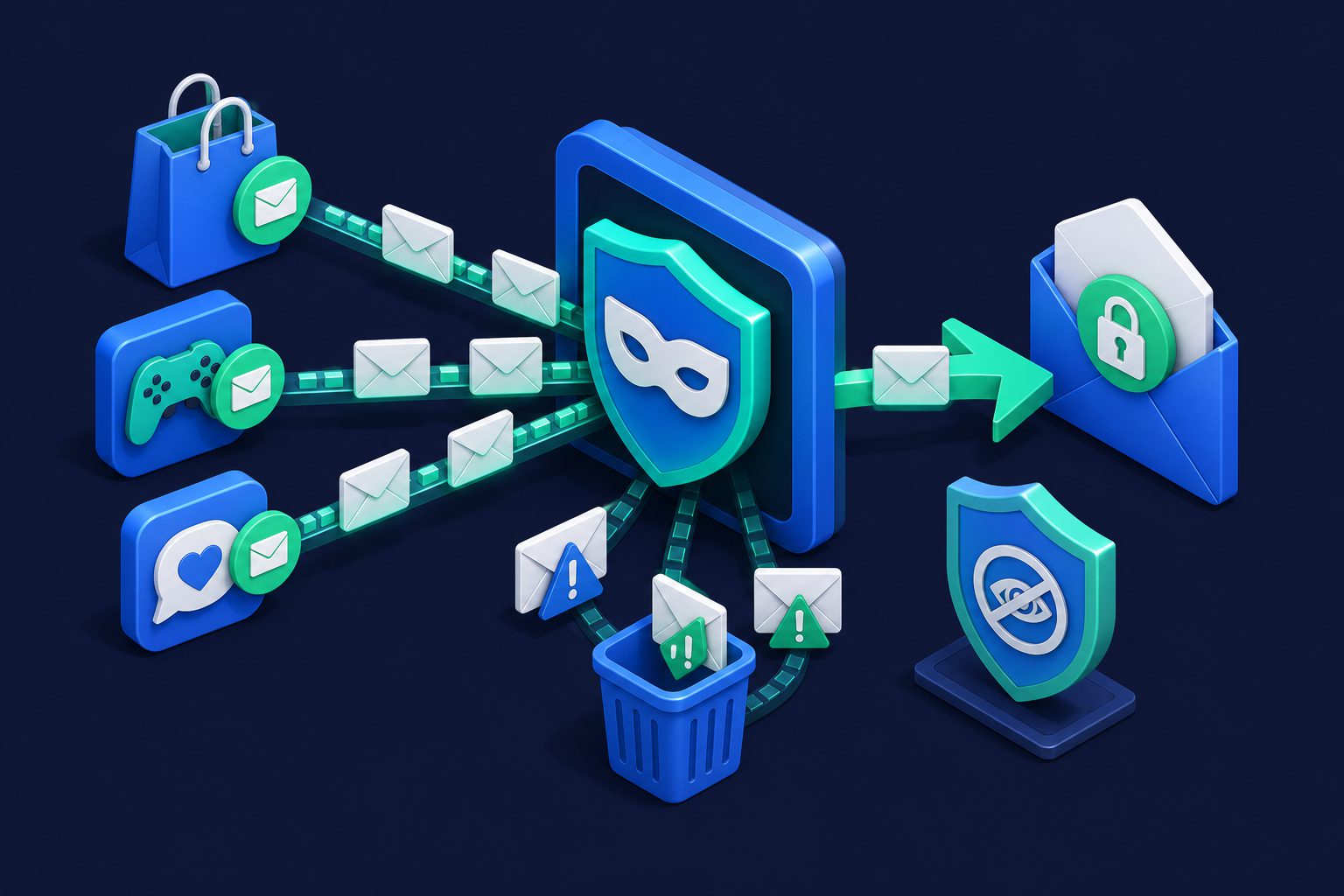
You probably use one email address for almost everything — shopping, newsletters, social media, banking, work accounts, random signups. Every service that has your address is a potential source of spam, data breaches, and unwanted marketing. Email masking solves this by giving each service a unique, disposable address that forwards to your real inbox.
How email masking works
An email mask is a unique forwarding address that sits between a sender and your real email. When someone sends a message to your mask address, it forwards to your real inbox. You read the email normally. The sender never sees your actual address.
Here is the flow:
- You sign up for a service using a mask address like
shop-amazon@cleanbox.me - The service sends email to that mask address
- The masking service forwards the email to your real address (for example,
you@gmail.com) - You receive the email in your normal inbox
If that mask address starts receiving spam, you know exactly which service leaked it. Disable the mask, and the spam stops. Your real address stays clean.
Email masking vs disposable email
Disposable email services like Guerrilla Mail or Temp Mail give you a temporary inbox that expires after a few hours. They are useful for one-time verifications, but they are fundamentally different from email masking:
| Feature | Email masking | Disposable email |
|---|---|---|
| Lasts forever | Yes (until you disable it) | No (expires in hours) |
| Forwards to your inbox | Yes | No (separate inbox) |
| Usable for account signups | Yes | Often blocked by services |
| Track which service leaked | Yes | No (already expired) |
| Turn off individually | Yes | Not applicable |
Email masking is a permanent privacy layer. Disposable email is a temporary workaround. For a deeper comparison, see How to Create a Temporary Email Address.
Why you need email masking
Data breaches are not hypothetical
In 2024 alone, over 1 billion records were exposed in data breaches. If your email address is in a breached database, it gets sold, traded, and used for credential stuffing attacks. With masking, only the mask address is exposed — not your real one. You disable the compromised mask and move on.
Spam tracking becomes trivial
When you use a unique mask for every service, spam is self-identifying. If shop-amazon@cleanbox.me starts receiving spam from random senders, you know Amazon's database leaked or they sold your address. No guessing, no investigation — the mask itself is the evidence.
You control the relationship
Without masking, giving your email to a service is a one-way door. You cannot easily revoke it. With masking, every service gets a handle you can disable, re-enable, or replace at any time. The power dynamic shifts from the sender to you.
Email masking services compared
| Service | Free masks | Custom domains | Spam filtering | Sender blocking |
|---|---|---|---|---|
| Apple Hide My Email | Unlimited (iCloud+) | No | No | No |
| Firefox Relay | 5 | 1 (Premium) | No | Yes (on/off) |
| SimpleLogin | 10 | Yes (Premium) | No | Yes |
| Addy.io | Unlimited | Yes (Pro) | No | Yes |
| Cleanbox | 3 | Yes (Premium+) | Yes (Rspamd + AI) | Yes (5 states) |
Most masking services do one thing: forward email. They do not scan for spam, viruses, or phishing. That means your masks protect your identity, but they do nothing about the quality of what arrives in your inbox.
The gap most masking services leave open
A pure masking service forwards everything. Spam, phishing attempts, malware attachments — they all pass through the mask to your inbox. You have hidden your real address, which is good. But you are still receiving junk, which is the problem you wanted to solve.
This is why the combination of masking and filtering matters more than either alone:
- Masking without filtering = hidden address, but junk still arrives
- Filtering without masking = clean inbox, but your address is exposed everywhere
- Masking with filtering = hidden address AND clean inbox
How to set up email masking with Cleanbox
Cleanbox combines masking with pre-delivery filtering. Every alias is a mask that also scans incoming email through Rspamd, virus detection, and AI classification before forwarding. Here is how to get started:
- Create an alias for each service you sign up for (for example,
newsletter-techcrunch@cleanbox.me) - Use the alias wherever you would normally give your real email
- Monitor contacts — Cleanbox automatically categorizes senders and lets you whitelist, block, mute, or prioritize them per alias
- Adjust thresholds — Set stricter spam thresholds on aliases that receive more junk
- Disable when done — If an alias is compromised or no longer needed, disable it with one click
For business use, email aliases for teams let multiple team members share protected addresses with role-based access.
Email masking best practices
- One mask per service. Reusing masks defeats the purpose. Each service gets its own.
- Use descriptive names.
shop-amazon@cleanbox.meis immediately identifiable.abc123@cleanbox.meis not. - Do not mask your bank. Critical services like banking and healthcare should use your real address with strong two-factor authentication, not a forwarding layer.
- Review periodically. Once a quarter, check which masks are active and disable any you no longer need.
- Use custom domains for professional masks.
press@yourdomain.comlooks more credible thanpress@cleanbox.mefor business use.
For more on how aliases work under the hood, see Email Aliasing Explained. For comparisons between specific masking services, see SimpleLogin vs Addy.io and Firefox Relay vs SimpleLogin.
Ready to take control of your inbox?
Start protecting your email with Cleanbox — free plan available, no credit card required.
Get started free