How to Block Email Tracking Pixels in Every Email App
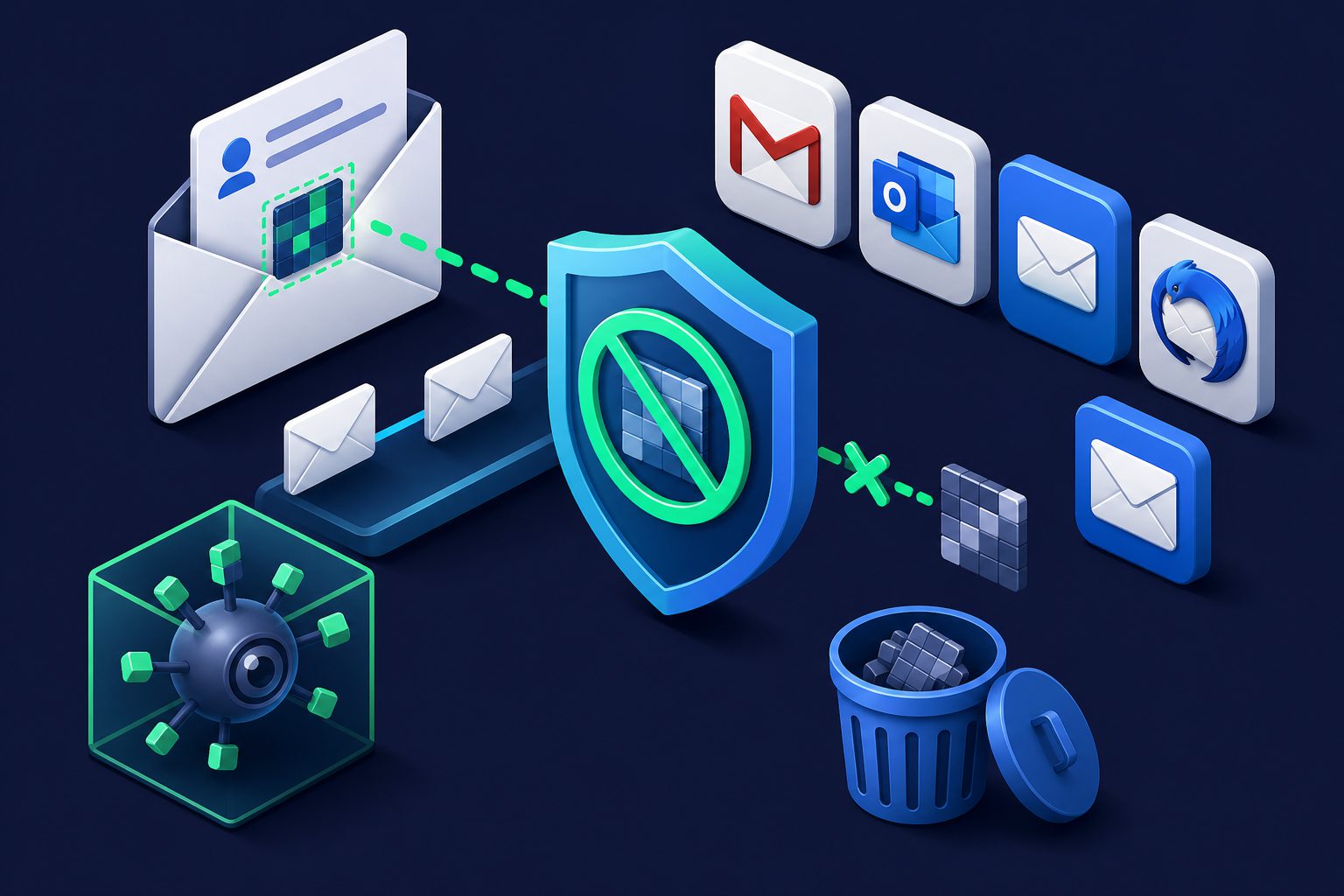
Every time you open a marketing email, there is a good chance a tiny invisible image is loaded in the background. That image is a tracking pixel — a 1x1 transparent GIF hosted on the sender's server. When your email client loads it, the server logs your IP address, location, device type, operating system, and the exact time you opened the message.
If you want to understand the mechanics behind tracking pixels, we covered that in detail in How Email Tracking Pixels Work. This article is the practical companion: how to actually block them, app by app.
The universal fix: disable remote images
Every tracking pixel works the same way — it relies on your email client loading a remote image. If your client does not load remote images, the pixel never fires. This is the single most effective thing you can do, regardless of which app you use.
The tradeoff is real: disabling remote images means newsletters and marketing emails will look broken until you manually choose to load images. But for privacy, it is the nuclear option that actually works.
Apple Mail (iPhone, iPad, Mac)
Option 1: Mail Privacy Protection (recommended)
Apple Mail has a built-in solution that does not break email formatting:
- iPhone/iPad: Settings → Apps → Mail → Privacy Protection → Enable Protect Mail Activity
- Mac: Mail → Settings → Privacy → Check "Protect Mail Activity"
This routes all remote content through Apple's proxy servers, hiding your IP address and pre-loading pixels so senders cannot tell when you opened the email. Images still display normally — you get privacy without the broken formatting.
Option 2: Block all remote content
For maximum protection, disable remote content entirely:
- iPhone/iPad: Settings → Apps → Mail → Privacy Protection → Disable "Protect Mail Activity" → Toggle off "Block All Remote Content"
- Mac: Mail → Settings → Privacy → Uncheck "Protect Mail Activity" → Uncheck "Load remote content in messages"
This blocks everything, including tracking pixels. You can load images per-message by clicking "Load Remote Content" at the top of individual emails.
Gmail (web and app)
Gmail on the web
Gmail does not offer tracking pixel protection like Apple Mail does. However, you can disable automatic image loading:
- Open Gmail in your browser
- Click the gear icon → See all settings
- In the General tab, find "Images"
- Select "Ask before displaying external images"
- Scroll down and click Save Changes
Now every email with remote images will show a "Display images below" prompt. Tracking pixels will not load unless you explicitly allow them.
Gmail app (Android/iOS)
On the Gmail mobile app:
- Open Gmail → Menu → Settings
- Tap your email account
- Tap "Images"
- Select "Ask before displaying external images"
This applies to that account only. If you have multiple accounts in the Gmail app, repeat for each.
Outlook (web, desktop, mobile)
Outlook on the web
- Click the gear icon → View all Outlook settings
- Go to Mail → Junk email
- Under "Filtering," find "Block external images and style"
- Toggle it on
Outlook desktop (Windows)
- File → Options → Trust Center → Trust Center Settings
- Click "Automatic Download"
- Check "Don't download pictures automatically in standard HTML email messages"
Outlook desktop has blocked external images by default for years. If you have not changed this setting, you are already protected.
Outlook mobile (iOS/Android)
The Outlook mobile app loads images by default and does not currently offer a setting to block them globally. This is a significant privacy gap. If tracking protection matters to you on mobile, consider using Apple Mail (with MPP) or a privacy-focused client instead.
Thunderbird (desktop)
Thunderbird blocks remote content by default, making it one of the most privacy-friendly email clients out of the box:
- Open Thunderbird → Settings → Privacy & Security
- Under "Mail Content," ensure "Allow remote content in messages" is unchecked
When you open an email with blocked remote content, Thunderbird shows a bar at the top: "To protect your privacy, Thunderbird has blocked remote content in this message." Click "Load remote content" if you trust the sender.
Yahoo Mail
Yahoo Mail does not offer a way to block remote images in either the web interface or the mobile app. All tracking pixels fire automatically. This is consistent with Yahoo's advertising-driven business model — tracking engagement data is valuable to them.
If you use Yahoo Mail and care about tracking protection, your best option is to access your Yahoo account through a different client (like Thunderbird or Apple Mail) that lets you control remote image loading. For more on Yahoo's privacy practices, see Is Yahoo Mail Safe?
Quick reference table
| Email client | Built-in pixel blocking | Block remote images | Proxy loading |
|---|---|---|---|
| Apple Mail | Yes (MPP) | Yes | Yes |
| Gmail (web) | No | Yes (manual) | Partial (Google proxy) |
| Gmail (app) | No | Yes (manual) | Partial |
| Outlook (desktop) | No | Yes (default on) | No |
| Outlook (web) | No | Yes | No |
| Outlook (mobile) | No | No | No |
| Thunderbird | No | Yes (default on) | No |
| Yahoo Mail | No | No | No |
| ProtonMail | Yes | Yes (default on) | Yes |
Why blocking pixels is not enough
Disabling remote images stops basic tracking pixels, but modern email tracking has evolved beyond simple image loads:
- Link tracking: Every link in marketing emails is typically routed through a tracking redirect. Clicking any link tells the sender you opened the email, even if images were blocked.
- CSS-based tracking: Some senders use CSS
background-imageproperties or@mediaqueries that load remote resources without a visible<img>tag. - AMP for Email: Gmail's AMP emails can execute interactive content that phones home without loading a traditional pixel.
Blocking remote images is the most impactful single step, but it is one layer of a broader strategy.
The better approach: stop tracking before it starts
Instead of playing defense against tracking pixels after email arrives, you can prevent senders from having a trackable address in the first place. When you sign up for a service with a unique email alias through Cleanbox, you control the relationship. If a sender's tracking becomes excessive, disable the alias. If a service sells your address to a data broker, you know exactly which alias was leaked — and you can shut it down without affecting your real inbox.
Combined with Cleanbox's pre-delivery filtering, emails are scanned and cleaned before they reach your inbox. Suspicious senders can be blocked, rate-limited, or quarantined at the alias level — a level of control that no email client setting can match.
For more on building a privacy-focused email setup, see Best Email Providers for Privacy in 2026.
Ready to take control of your inbox?
Start protecting your email with Cleanbox — free plan available, no credit card required.
Get started free