How to Recover a Hacked Email Account
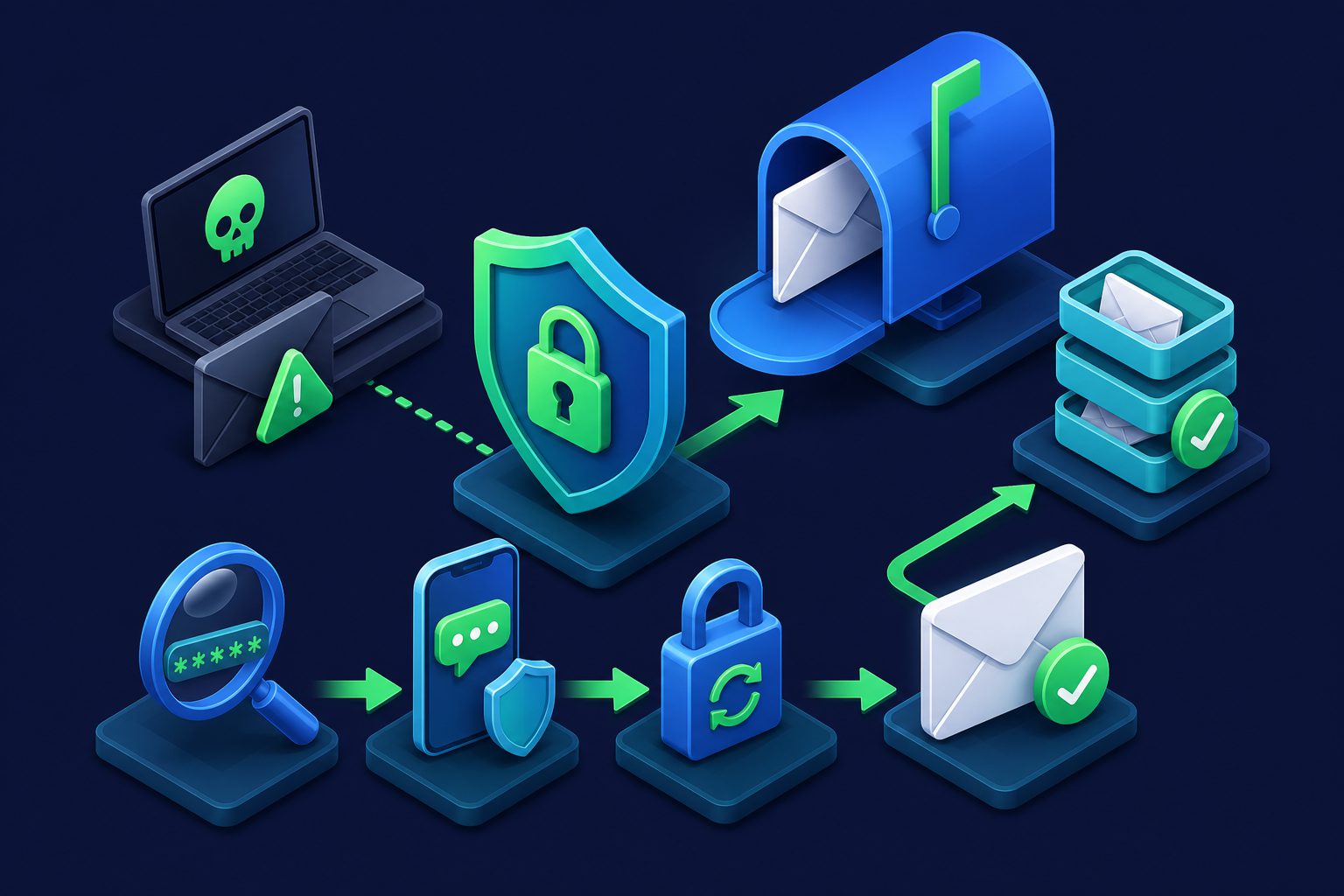
Your email account is the master key to your digital life. Every password reset, two-factor code, bank notification, and subscription confirmation goes through it. When an attacker takes over your email, they can reset passwords on every other account, intercept verification codes, and impersonate you to contacts.
The first 30 minutes matter most. Here is exactly what to do.
Signs your email has been hacked
Some are obvious. Others are easy to miss:
- You cannot log in — The attacker changed your password
- Password reset emails you did not request — The attacker is resetting passwords on your other accounts
- Sent emails you did not write — The attacker is emailing your contacts (spam, phishing, or scams)
- Missing emails — The attacker is deleting evidence or reading and marking emails as read
- Security alerts from your provider — Login from an unfamiliar location, device, or IP address
- Contacts tell you they received strange emails from you — Often the first sign people notice
- Unfamiliar forwarding rules or filters — The attacker set up email forwarding to receive copies of your incoming mail silently
- Changed recovery email or phone number — The attacker is locking you out of recovery options
Step-by-step recovery
Step 1: Regain access to the account
If you can still log in:
- Change your password immediately to something completely new (not a variation of the old one)
- Do not log out until you have completed all the steps below
If you cannot log in:
- Gmail: Go to accounts.google.com/signin/recovery. Google will ask verification questions, send codes to recovery phone/email, or ask you to verify on a trusted device
- Outlook/Hotmail: Go to account.live.com/password/reset. Microsoft sends a code to your recovery phone or email, or offers an identity verification form
- Yahoo: Go to login.yahoo.com and click “Forgot password.” Yahoo uses SMS verification or Account Key if previously set up
- Apple/iCloud: Go to iforgot.apple.com. Apple uses trusted devices, recovery keys, or account recovery contacts
If none of the standard recovery options work (the attacker changed your recovery email and phone), you will need to contact the provider's support directly with proof of identity. This can take days — start immediately.
Step 2: Check and remove unauthorized access
Once you are back in your account:
- Review active sessions — Sign out of all other sessions. In Gmail: Settings → “Last account activity” → “Sign out all other sessions.” In Outlook: Security → “Sign-out everywhere.”
- Check connected apps and third-party access — Revoke access for any app or service you do not recognize. Attackers often grant themselves OAuth access that persists even after you change your password
- Check email forwarding rules — Look for forwarding rules that send copies of your email to an external address. This is a common persistence technique — even after you change the password, the attacker continues receiving your email
- Check email filters — Look for filters that automatically delete or archive specific emails (especially security alerts and password reset emails)
- Verify recovery email and phone number — Make sure these are yours and have not been changed
Step 3: Enable two-factor authentication
If you did not have two-factor authentication before, enable it now. If you did have it and the attacker bypassed it (through SIM swapping, malware, or social engineering), change your 2FA method:
- Best: Hardware security key (YubiKey, Google Titan Key) — phishing-resistant, cannot be intercepted
- Good: Authenticator app (Google Authenticator, Authy, Microsoft Authenticator) — better than SMS
- Acceptable: SMS codes — vulnerable to SIM swapping but better than nothing
Step 4: Assess the damage
Check what the attacker did while they had access:
- Sent folder: Did they email your contacts? If yes, warn your contacts that the messages were not from you
- Trash/deleted: Did they delete emails to hide their activity? Check for deleted password reset confirmations from other services
- Password resets: Search your inbox for “password reset,” “password changed,” and “new device login” from other services. Any service where the attacker reset the password needs immediate attention
- Financial accounts: Check bank accounts, PayPal, cryptocurrency exchanges, and credit cards for unauthorized transactions
Step 5: Secure your other accounts
Change passwords on every account that uses your email address — starting with the most critical:
- Banking and financial services
- Primary social media (the attacker may impersonate you)
- Cloud storage (Google Drive, Dropbox, iCloud)
- Shopping accounts with saved payment methods (Amazon, eBay)
- Work and professional accounts
Use a unique password for every account. A password manager makes this practical. If you reused your email password on other services (which is likely how the attacker got in), those accounts are compromised too.
Step 6: Check for data exposure
Use breach lookup tools to check whether your email appeared in known data breaches. If the hack was caused by a password from a breach database, your other accounts using that password are also at risk.
How to prevent it from happening again
- Use a unique password for your email — Never reuse your email password on any other service. If a shopping site gets breached and you used the same password, your email is next
- Enable two-factor authentication — Preferably with a hardware key or authenticator app, not SMS
- Use email aliases — When you sign up for services with unique aliases instead of your real address, a breach at one service does not expose your primary email
- Be skeptical of login pages — Phishing is the most common way email accounts are compromised. Always check the URL before entering credentials
- Review account activity regularly — Check active sessions and connected apps monthly. Catching unauthorized access early limits the damage
- Keep recovery options current — Make sure your recovery phone number and backup email are up to date so you can always regain access
Protecting your inbox going forward
Account recovery addresses the immediate crisis. Long-term protection means reducing your exposure:
- Filter email before it reaches you — Cleanbox processes every incoming email through spam scoring, virus scanning, authentication checks, and AI classification before delivery. Phishing emails that could lead to future compromises are caught before you see them
- Isolate your real address — Use aliases for all signups. If a service leaks your alias, disable it. Your real email stays private
- Monitor for breaches — Check breach databases periodically to catch exposure early
Ready to take control of your inbox?
Start protecting your email with Cleanbox — free plan available, no credit card required.
Get started free