
Email Security Made Simple - A 6-Step Setup Guide
Why One Layer Is Never Enough
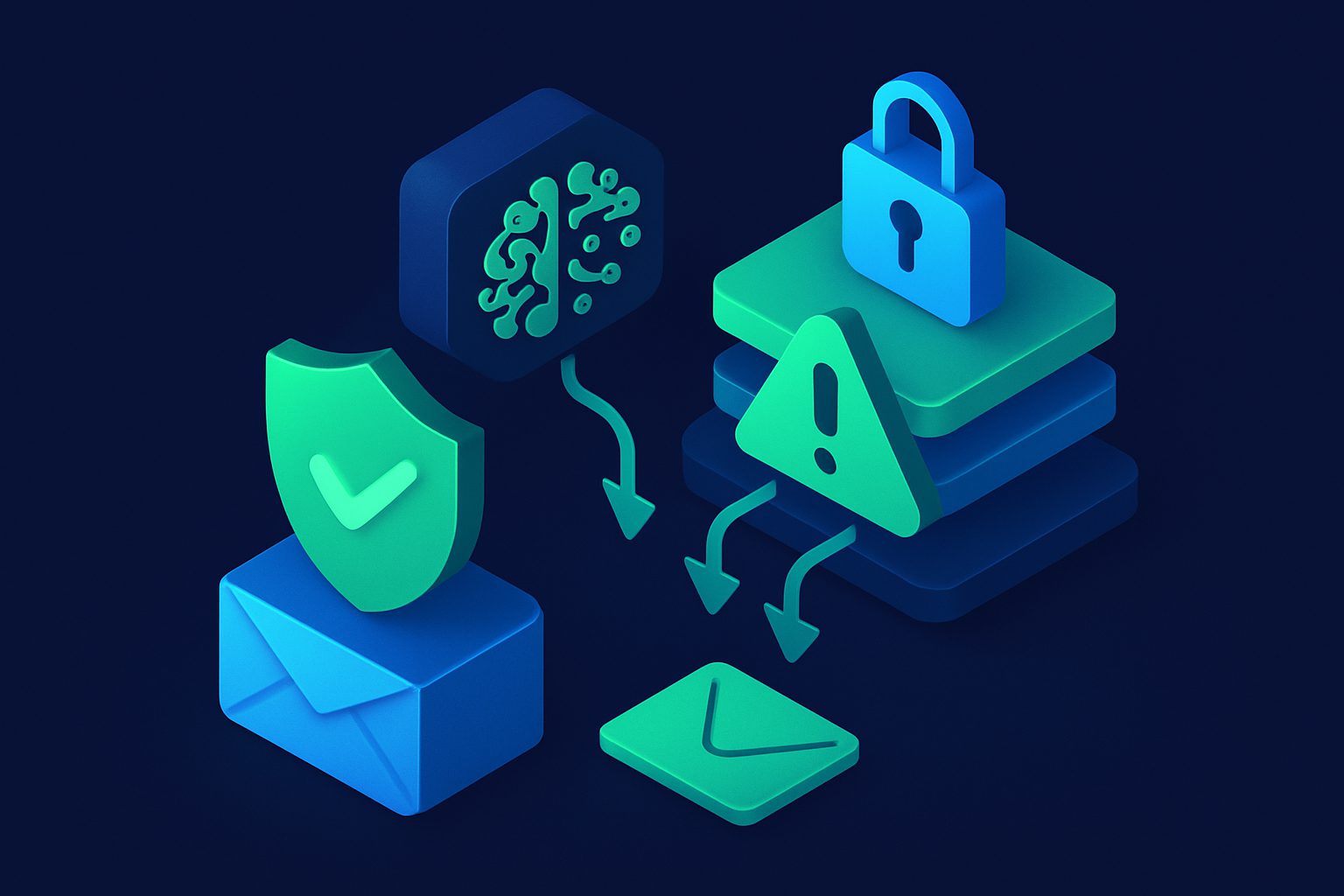
If you have ever locked your front door but left a window open, you understand the basic principle behind layered security. No single protection is perfect. Spam filters miss some threats. Email authentication stops some impersonation but not all. A strong password protects your account until it shows up in a data breach. Each defense has gaps — and attackers are experts at finding them.
The solution is not to find the one perfect tool. It is to stack multiple layers of protection so that what slips past one layer gets caught by the next. In cybersecurity, this is called "defense in depth," and it is the same approach that banks, governments, and large enterprises use to protect their systems.
The good news: you do not need to be a security expert to build a layered email setup. Each layer is straightforward to implement, and together they make your inbox dramatically more secure than any single tool could.
Here are the six layers, what each one protects against, and how to set them up.
Layer 1: Email Aliases — Never Expose Your Real Address
What It Protects Against
Data breaches, spam, unwanted marketing, phishing, and identity correlation across services.
How It Works
Email aliases are forwarding addresses that deliver mail to your real inbox without revealing your actual email address. You create a unique alias for each online service, store, or newsletter. If one alias is compromised, you disable it. Your real address stays private.
Think of aliases as the outer wall of your email fortress. They are the first thing the outside world interacts with, and they ensure that your actual address never enters the wild where it can be harvested, sold, or breached.
How to Set It Up
- Choose an email aliasing service that supports custom domains or provides generated aliases
- Create a unique alias for every new account or sign-up
- Use a consistent naming convention so you can easily identify which alias belongs to which service
- Monitor your aliases and disable any that start receiving unwanted email
What You Gain
Complete control over who can reach your inbox. The ability to instantly cut off any source of unwanted email. Clear visibility into which services share or leak your data.
Layer 2: Spam Filtering — Catch Bad Email Before It Reaches You
What It Protects Against
Spam, phishing, malware attachments, scam emails, and bulk unwanted messages.
How It Works
A spam filter sits between the internet and your inbox, analyzing every incoming email for signs of trouble. Modern filters use a combination of techniques: sender reputation checks, content analysis, link scanning, attachment inspection, and increasingly, AI-powered understanding of email context and intent.
This is the layer most people already have in some form — Gmail, Outlook, and other providers include built-in spam filtering. But built-in filters are designed for the average user and may not catch more sophisticated threats. A dedicated email security service provides deeper analysis and more configurable protection.
How to Set It Up
- If you are using a major email provider, make sure spam filtering is enabled (it usually is by default)
- For better protection, consider a dedicated spam filtering service that processes your email before it reaches your inbox
- Review your spam folder periodically to check for false positives (legitimate emails incorrectly flagged as spam)
- Train your filter by marking missed spam as junk and rescuing legitimate emails from the spam folder
What You Gain
The vast majority of malicious and unwanted email never reaches your inbox. Phishing attempts, malware, and scam messages are caught and quarantined automatically.
Layer 3: Email Authentication — Verify That Senders Are Who They Claim to Be
What It Protects Against
Email spoofing, domain impersonation, and phishing emails that pretend to be from trusted sources.
How It Works
Email authentication is a set of technical standards — SPF, DKIM, and DMARC — that verify whether an email actually came from the domain it claims to be from. Without authentication, anyone can send an email that appears to come from your bank, your employer, or any other organization.
- SPF (Sender Policy Framework) specifies which mail servers are authorized to send email on behalf of your domain.
- DKIM (DomainKeys Identified Mail) adds a digital signature to outgoing emails that recipients can verify.
- DMARC (Domain-based Message Authentication, Reporting, and Conformance) tells receiving servers what to do when SPF or DKIM checks fail — and sends you reports about authentication results.
How to Set It Up
If you use a custom domain for email:
- Add an SPF record to your domain DNS that lists your authorized mail servers
- Enable DKIM signing through your email provider (most providers support this)
- Create a DMARC record that starts with a "monitor" policy (p=none) so you can see reports without affecting delivery, then gradually move to a stricter policy (p=quarantine or p=reject)
If you use a free email address (Gmail, Outlook, etc.), these protections are already implemented by your provider. The main action for you is to be aware that authenticated emails are more trustworthy than unauthenticated ones.
What You Gain
Confidence that emails claiming to be from your domain are genuine. Protection against attackers who try to impersonate your identity to others. Visibility into who is sending email using your domain name.
Layer 4: Contact Management — Control Who Gets Through
What It Protects Against
Unwanted messages from unknown senders, repeat spam from specific addresses, and contact from bad actors.
How It Works
Contact management is about actively controlling who can reach your inbox. This includes whitelisting trusted senders (so their emails always get through), blocklisting known bad senders, and managing your contacts so that your email system knows the difference between a message from a colleague and a message from a stranger.
This layer works hand-in-hand with spam filtering. While the filter makes automated decisions about unknown email, your contact list provides explicit instructions: "always allow email from these addresses" and "always block email from those addresses."
How to Set It Up
- Add your important contacts (family, friends, colleagues, key services) to your whitelist or safe sender list
- When you receive spam that gets past your filter, block the sender
- Periodically review your blocked sender list and remove entries that are no longer relevant
- If your email service supports it, use contact-based filtering rules that treat email from known contacts differently than email from unknown senders
What You Gain
Email from people you know always reaches you reliably. Repeat offenders are permanently blocked. Your inbox becomes a curated space rather than an open door.
Layer 5: Shield and Rate Limiting — Control Volume and Timing
What It Protects Against
Email bombing (flooding your inbox with hundreds of messages), brute-force attacks on your email, and sudden spikes in unwanted email that overwhelm normal filtering.
How It Works
Rate limiting and shield features act as a governor on your inbox, controlling how much email can arrive within a given time period. If someone tries to flood your address with thousands of emails (a tactic used to distract you while attackers compromise other accounts, or simply as harassment), rate limiting throttles the flow before it overwhelms your inbox and your filter.
Shield features can also include rules that automatically quarantine email matching certain patterns, hold email from new senders for review, or apply stricter filtering during unusual activity spikes.
How to Set It Up
- Check whether your email security service offers rate limiting or shield features
- Configure thresholds that make sense for your usage (for example, flag or hold email if more than 50 messages arrive from a single sender within an hour)
- Set up alerts for unusual email volume so you are aware of potential attacks
- Enable any available "new sender" quarantine that holds first-time messages for quick review
What You Gain
Protection against volume-based attacks. Peace of mind that a sudden flood of email will not bury important messages or overwhelm your inbox. An additional signal for identifying suspicious activity.
Layer 6: Encryption in Transit — Protect Email as It Travels
What It Protects Against
Eavesdropping on email content as it travels between servers, man-in-the-middle attacks, and interception of sensitive information.
How It Works
When you send an email, it does not travel directly from your device to the recipient. It passes through multiple servers, and at each hop, there is an opportunity for someone to intercept and read the message. TLS (Transport Layer Security) encryption protects email in transit by creating an encrypted connection between mail servers, so that even if someone intercepts the data, they cannot read it.
Most major email providers now support TLS by default, but it is not universal. When both the sending and receiving servers support TLS, the connection is encrypted. When one side does not, the email may travel in plain text.
How to Set It Up
- Use an email provider that supports TLS (Gmail, Outlook, and most reputable providers do)
- If you run your own mail server, ensure TLS is enabled and configured with a valid certificate
- For highly sensitive communications, consider end-to-end encryption tools like PGP or S/MIME, though these require the recipient to also use compatible tools
- Check whether your email provider shows indicators for encrypted vs. unencrypted connections (Gmail shows a lock icon for TLS-protected messages)
What You Gain
Confidence that your email content is protected as it travels across the internet. Reduced risk of interception, especially when using public Wi-Fi or communicating across international boundaries.
How the Layers Work Together
The power of layered security is in the combination. Here is how a typical inbound email passes through all six layers:
- Alias layer: The email arrives at your alias, not your real address. If the alias has been disabled (because you identified it as compromised), the email bounces immediately. Threat stopped at the outermost perimeter.
- Authentication layer: The receiving server checks SPF, DKIM, and DMARC. If the email claims to be from your bank but fails authentication, it is flagged or rejected.
- Spam filter layer: The email content, sender reputation, links, and attachments are analyzed. Spam, phishing, and malware are caught and quarantined.
- Rate limiting layer: If the email is part of a flood (email bombing), rate limiting throttles the delivery and alerts you.
- Contact management layer: The email is checked against your whitelist and blocklist. Known good senders pass through; known bad senders are blocked.
- Encryption layer: Throughout this process, TLS ensures the email content is encrypted in transit between servers.
An attacker would need to get past every single one of these layers to reach your inbox with a malicious email. Each layer they encounter reduces the probability of success, and the combination makes a successful attack extremely unlikely.
Common Mistakes to Avoid
As you build your layered setup, watch out for these pitfalls:
- Relying on one layer only. A spam filter alone, no matter how good, will miss some threats. Aliases alone will not protect you from sophisticated phishing. Each layer has blind spots that other layers cover.
- Setting and forgetting. Security is not a one-time setup. Review your filters, update your blocklists, disable unused aliases, and check authentication reports periodically.
- Overcomplicating things. You do not need enterprise-grade tools. Start with the basics — aliases and good spam filtering — and add layers as you become comfortable.
- Ignoring the human element. No amount of technical protection helps if you click on a phishing link or enter your password on a fake website. Stay skeptical of unexpected emails, verify unusual requests through separate channels, and keep your awareness sharp.
Getting Started: A Practical Roadmap
You do not need to implement all six layers at once. Here is a practical sequence:
- This week: Set up email aliases and start using them for all new sign-ups. This is the highest-impact, lowest-effort change you can make.
- Next week: Review your spam filtering. If you are using a basic free email account, consider whether a dedicated filtering service would improve your protection.
- Week three: Set up your contact whitelist and blocklist. Add your important contacts as safe senders and block any repeat spam sources.
- Week four: If you use a custom domain, check your email authentication (SPF, DKIM, DMARC) and fix any gaps.
- Ongoing: Explore rate limiting and shield features as you become more familiar with your email security tools. Review and maintain all layers quarterly.
The Key Insight
No single layer of email security is enough. But together, six straightforward layers create a defense that is far greater than the sum of its parts. Each layer is simple to understand and implement. You do not need to be a tech expert, and you do not need expensive enterprise tools.
Start with one layer today. Add another next week. Within a month, you will have an email security setup that stops the vast majority of threats before they ever reach your eyes. Your inbox should be a space you control — and with layered security, it can be.
Ready to take control of your inbox?
Start protecting your email with Cleanbox — free plan available, no credit card required.
Get started free