
What Your Email Metadata Reveals About You (Even When the Content Is Encrypted)
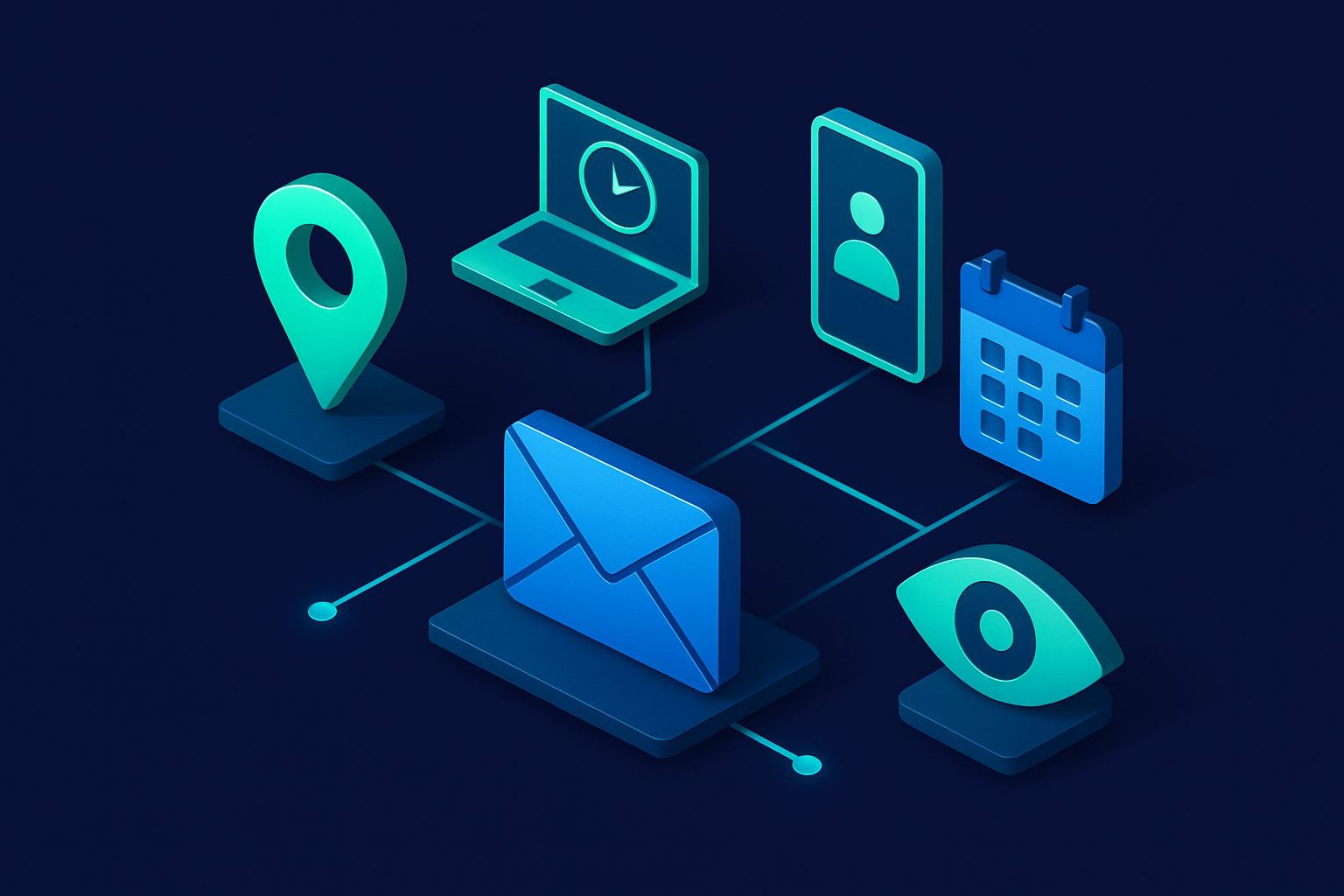
You can encrypt the body of an email. You can use a VPN. You can send from a privacy-focused provider. But the metadata — the data about the data — tells a story that encryption cannot hide.
Edward Snowden said it plainly: "Metadata absolutely tells you everything about somebody's life." And email metadata is among the richest there is.
What is email metadata?
Every email has two parts: the content (what you wrote) and the headers (technical information about the email). Headers are metadata. They are generated automatically and travel with every email, visible to every server that handles it.
When people talk about "email privacy," they usually mean content privacy. But metadata often reveals more than the content itself.
What the headers contain
1. Who you communicate with
From: you@example.com
To: colleague@company.com
CC: boss@company.com
Every email records the complete sender and recipient list. Over time, this builds a complete social graph: who you know, who you work with, who you communicate with regularly, and who is in the same conversations.
2. When and how often
Date: Mon, 19 May 2025 03:47:12 +0200The timestamp reveals your timezone, your schedule, and your habits. A 3 AM email suggests insomnia, night shifts, or a different timezone than your address implies. Frequency analysis reveals relationships: daily exchanges with someone indicate closeness that a single email does not.
3. Your IP address and location
Received: from [192.168.1.42] (cpe-172-16-254-1.socal.res.rr.com [172.16.254.1])
        by smtp.gmail.com with ESMTPSA id abc123
Many email clients and servers embed your IP address in the Received headers. This IP maps to your ISP, your approximate geographic location, and whether you are at home, at work, at a coffee shop, or traveling. Send an email from a hotel in Tokyo and the headers prove you were there.
Note: Some providers (Gmail, Outlook) strip the sender's IP from webmail. But desktop clients (Thunderbird, Apple Mail) and many corporate servers include it.
4. Your email client and operating system
X-Mailer: Microsoft Outlook 16.0
User-Agent: Mozilla Thunderbird 115.0
The User-Agent or X-Mailer header identifies your email software and often your operating system version. This is useful for fingerprinting: if you claim to use Linux but your emails show Outlook on Windows, someone is lying.
5. The routing path
Received: from mx1.cleanbox.to (mx1.cleanbox.to [1.2.3.4])
        by mail.recipient.com with ESMTPS
Received: from smtp.sender.com (smtp.sender.com [5.6.7.8])
        by mx1.cleanbox.to with ESMTPS
The complete path the email traveled, including every server that touched it. Each hop adds a Received header with the server's hostname, IP address, protocol, and timestamp. Read bottom-to-top, this traces the email's journey from origin to destination. For a deep dive on reading these, see Understanding Email Headers.
6. Authentication results
Authentication-Results: mx1.cleanbox.to;
    spf=pass smtp.mailfrom=example.com;
    dkim=pass header.d=example.com;
    dmarc=pass
Which authentication checks the email passed or failed. This reveals the sender's email infrastructure: which servers they use, how they are configured, and whether they have proper security.
7. Thread and conversation structure
Message-ID: <abc123@mail.example.com>
In-Reply-To: <def456@mail.example.com>
References: <ghi789@mail.example.com> <def456@mail.example.com>
These headers link emails into conversation threads. Even without reading the content, you can reconstruct the structure of a conversation: who initiated it, who replied, how many exchanges occurred, and in what order.
8. Mailing list participation
List-Unsubscribe: <https://list.example.com/unsubscribe/abc123>
List-Id: <newsletter.example.com>
Precedence: bulk
These headers reveal which mailing lists and newsletters you subscribe to — a detailed profile of your interests, affiliations, and purchasing behavior.
What metadata analysis can reveal
Individual headers are mildly informative. In aggregate, they are powerful:
| Analysis | What it reveals | From which headers |
|---|---|---|
| Social graph | Who you know, how closely, and in what context | From, To, CC, frequency analysis |
| Daily schedule | When you wake up, when you work, when you sleep | Date timestamps across many emails |
| Location history | Where you were when you sent each email | Received headers with IP geolocation |
| Device fingerprint | What hardware and software you use | User-Agent, X-Mailer |
| Interest profile | What topics, products, and services interest you | List-Id, newsletter subscriptions |
| Organizational structure | Reporting lines, team membership, decision chains | CC patterns, reply chains |
| Travel patterns | Where and when you travel | IP geolocation + timezone changes in Date header |
Who collects email metadata?
- Your email provider — Gmail, Outlook, and Yahoo have access to all metadata on every email you send and receive. Their privacy policies explicitly allow metadata analysis for features, advertising targeting, and legal compliance.
- Every server in the chain — Each SMTP relay that handles your email can read and log the headers.
- Government agencies — In many jurisdictions, metadata collection does not require a warrant. The legal threshold for accessing "who you emailed and when" is often lower than for accessing email content.
- Network observers — Anyone monitoring network traffic (ISPs, WiFi operators) can see SMTP connections and extract metadata even when TLS is used (TLS encrypts content but the connection metadata — which server you connected to — is visible).
How to limit metadata exposure
What you can control
| Method | What it hides | What it does not hide |
|---|---|---|
| Email aliases | Your real email address from recipients and mailing lists | The alias-to-real mapping (known to the alias provider) |
| VPN | Your real IP from the email headers | The VPN provider's IP still appears in headers |
| Webmail | Your local IP (Gmail/Outlook strip it) | Your provider still logs your login IP |
| Privacy-focused provider | Content from the provider (zero-access encryption) | Metadata is still generated and visible to relays |
| Tor + ProtonMail | IP + content + provider knowledge | Recipient metadata, conversation structure, timestamps |
Practical steps
- Use email aliases for every service. This compartmentalizes your identity: each alias reveals a relationship with one service, not your entire social graph.
- Use webmail over desktop clients when metadata privacy matters. Desktop clients leak your IP and software fingerprint via headers. Webmail strips this.
- Use a VPN when sending email from locations you want to keep private. The VPN's IP appears in headers instead of your real IP. See Email Aliases vs VPN for how they complement each other.
- Minimize CC/BCC usage — Every CC'd address is metadata linking those people together.
- Be aware of timestamps — If you are sending email at unusual hours, consider whether the timestamps reveal something you would prefer to keep private.
The uncomfortable truth
Email was designed in the 1970s for openness, not privacy. Metadata is baked into the protocol. You cannot send an email without generating metadata. You can minimize it, compartmentalize it (with aliases), and encrypt the content (with PGP or S/MIME). But the metadata — who, when, where, how often — is inherent to how email works.
This is not an argument against email. It is an argument for being intentional about what you share and with whom. Use aliases to compartmentalize. Use a VPN to hide location. Use webmail to avoid client fingerprinting. And understand that the headers say more about you than the body ever could.
For a complete guide to reading email headers, see Understanding Email Headers: A Complete Guide.
Ready to take control of your inbox?
Start protecting your email with Cleanbox — free plan available, no credit card required.
Get started free